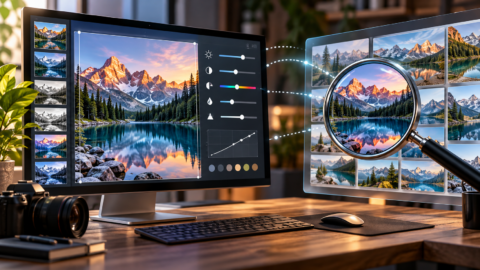


To search by image, you give a search engine a picture instead of words, and it shows you where that picture, or things like it, appear online. On a computer, the quickest way is to right-click an image in Chrome and choose to search it with Google Lens, or to upload a photo at Google, Bing or TinEye. On a phone, Google Lens does the same through the camera or your photo gallery.
This guide gives the exact steps for each method, explains which engine to use for which job, and shares the techniques that turn “no results” into a useful match. Steps come from Google’s, Microsoft’s and TinEye’s own help pages, checked on 27 October 2026.
Method 1: Google on a computer
According to Google Search Help, you can search with an image in several ways:
- Upload a fileOn google.com, click the Search by image (camera) icon, choose Upload a file, and select your image.
- Drag and dropDrag an image from your computer or another tab into the search box.
- Paste an image linkRight-click an image online, choose Copy image address, then paste it into the Paste image link field and click Search.
- Right-click in ChromeRight-click any image on a web page and choose Search with Google Lens. Results open in a sidebar so you stay on the page.
Method 2: Google Lens on a phone
On Android and iPhone, Google’s image search runs through Google Lens, available in the Google app and in Chrome. Tap the Lens (camera) icon, then point your camera at something or choose a photo from your gallery. Lens can also find the source of an image you’ve saved, identify objects and translate text in a photo. Exact menus differ by device and app version, so see Google’s help page for your phone if an option isn’t where you expect.
Method 3: Bing Visual Search
Microsoft’s instructions: open Bing Images, or the Images tab on any Bing results page, and select the camera icon in the search box. On a computer you can drag in an image, upload one, paste an image or URL, or take a photo with your webcam. On a phone, you can take a new photo or upload one from your device. Microsoft notes that uploaded photos may be used to improve Bing’s image services, and that its AI can make mistakes.
Method 4: TinEye
TinEye specialises in finding copies of an image, including cropped, resized or edited ones, rather than “similar-looking” pictures. Go to tineye.com and add your image or its web address. Because it focuses on copies, it’s widely used to trace where an image appeared before and how it has been altered. On privacy, TinEye’s help centre says it never saves the images you search with, and deletes them right after showing results.
Which engine for which job?
| You want to… | Start with | Why |
|---|---|---|
| Identify a plant, landmark, product or object | Google Lens | Recognises what’s in the picture, not just copies of it |
| Find where to buy something you’ve seen | Google Lens or Bing | Both show shopping matches |
| Check whether a viral photo is old or misused | TinEye, then Google | TinEye shows other copies of the image; Google adds wider coverage |
| Find the original creator to credit or license | TinEye | Tracks exact and edited copies across sites |
| Translate text in a photo | Google Lens | Built-in text recognition and translation |
Reverse image search techniques that work
- Crop to the subject. Remove borders, captions and backgrounds so the engine focuses on what matters.
- Try more than one engine. Each indexes different parts of the web.
- Use the best-quality version you have. Screenshots of screenshots lose detail.
- Flip or mirror the image if you suspect someone reversed it to dodge detection.
- Search a single video frame to trace where a clip came from.
- Add words to your image search in Google Lens to narrow results, for example a colour or brand.
Faces and privacy
Don’t use reverse search to identify strangers from photos of their face. In Germany and across the EU, facial images are personal data under the GDPR, and face-recognition search services have drawn regulatory scrutiny. Use image search for objects, places, products and checking sources, not for tracking people.
Kurz auf Deutsch: Bildersuche (Rückwärtssuche)
Zusammenfassung
- Am Computer: Auf google.com auf das Kamera-Symbol klicken und ein Bild hochladen, oder in Chrome mit Rechtsklick auf ein Bild „Mit Google Lens suchen“ wählen.
- Am Smartphone: Google Lens in der Google-App oder in Chrome verwenden.
- Alternativen: Bing Visual Search (Kamera-Symbol in Bing Bilder) und TinEye, das hochgeladene Suchbilder laut eigenen Angaben nicht speichert.
- Tipp: Bild zuschneiden und mehrere Suchmaschinen ausprobieren.
Looking for free tools to edit photos as well? See our hub on free online photo editors and reverse image search tools.
Our verdict
Bottom line
The fastest way to search by image is Google: upload or drag a picture into the camera icon on google.com, or right-click any image in Chrome. Use Bing Visual Search as a second opinion and for shopping, and TinEye to trace exact copies, with your search image deleted afterwards.
Crop to the subject, try two engines, and never use image search to identify people from their faces. Steps were checked on 27 October 2026.
Common questions
How do I search by image on Google?
On google.com, click the Search by image (camera) icon, then upload a file, drag an image into the search box or paste an image link. In Chrome, you can also right-click an image and choose Search with Google Lens.
How do I do a reverse image search on my phone?
Use Google Lens in the Google app or Chrome: tap the Lens icon, then take a photo or choose one from your gallery. Bing also lets you take or upload a photo on mobile.
What is the best reverse image search engine?
It depends on the job. Google Lens is best for identifying objects and products, TinEye for finding exact and edited copies and their history, and Bing for a second opinion and shopping matches.
Is reverse image search free?
Yes. Google, Bing and TinEye are free for everyday searches.
Does Google save the images I search with?
Google's help page notes that Google may store the URLs you search. Check your Google account's activity settings for how uploads are handled. TinEye says it never saves search images.
Why can't reverse image search find my picture?
The image may not be online, may be too heavily edited, or may sit in a part of the web an engine hasn't indexed. Crop to the subject, use the best-quality version, and try another engine.
Wie funktioniert die Bildersuche bei Google?
Auf google.com auf das Kamera-Symbol klicken und ein Bild hochladen, hineinziehen oder einen Bildlink einfügen. In Chrome mit Rechtsklick auf ein Bild „Mit Google Lens suchen" wählen.