

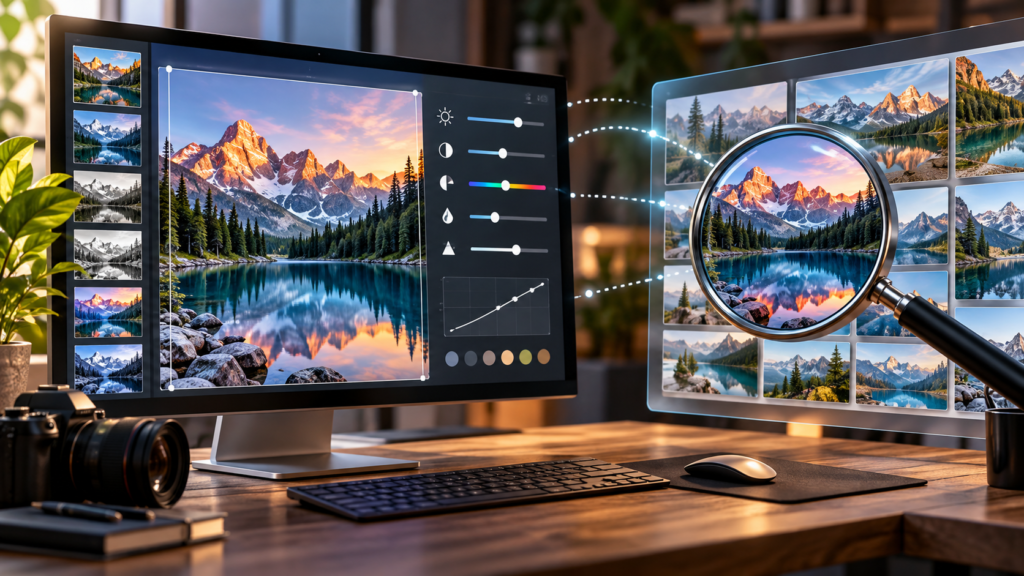
Two kinds of free image tool get searched more than almost anything else: online photo editors, for fixing and transforming pictures in the browser, and reverse image search, for finding where a picture came from. Both are free, both run in a browser tab, and both raise the same question: what happens to the photos you give them?
This hub covers the best-known free options in each group, explains how they handle your images, and links to our detailed guide on searching by image. Details come from each tool’s own pages and help centres, checked on 27 October 2026, unless we say otherwise.
Free online photo editors
| Tool | What it’s for | Cost | Your photos |
|---|---|---|---|
| Photopea | Advanced, Photoshop-style editing: layers, masks, PSD files | Free | Processed on your device; Photopea says files “never leave your device” |
| Webcam Toy | Fun webcam photos with 80+ effects and filters | Free | Says photos aren’t stored online unless you choose to share them |
| Picofme.io | AI profile pictures: background removal, colour backdrops and outlines | Described as free by directory listings | Third-party listings say uploads are deleted after processing; not confirmed on its own site |
Photopea: a free Photoshop-style editor
Photopea runs entirely in the browser and opens Photoshop’s PSD format, which it calls its main format, along with PNG, JPG, WEBP, SVG, PDF, AI, TIFF, Figma files and dozens more. Its biggest selling point beyond price is privacy: the site states that there are no uploads and your files stay on your device. If you need layers, selections and adjustments without paying for desktop software, start here.
Webcam Toy: quick fun with your camera
Webcam Toy is a photo booth in your browser. Allow camera access, pick from more than 80 effects (such as comic book, fisheye or kaleidoscope), and take a single photo or a strip of four. The site says photos aren’t stored online unless you share them, and it works in Chrome and Edge.
Picofme.io: AI profile pictures
Picofme.io is an AI profile-picture maker rather than a general editor. Directory listings such as AlternativeTo describe automatic background removal with dozens of backgrounds, filters and outlines, no account required, and auto-cropping for circular profile photos. We couldn’t confirm its privacy claims on an official page, so only upload photos you’re comfortable sharing.
Reverse image search tools
Reverse image search works the other way round: you give it a picture and it finds where that picture, or similar ones, appears online. It’s the fastest way to check whether a viral photo is old, find the original creator, identify a product or spot a fake profile.
| Engine | Strengths | What happens to your image |
|---|---|---|
| Google (Lens) | Huge index; identifies objects, places, text and products | Google’s help page notes Google may store the URLs you search; check its privacy settings for uploads |
| Bing Visual Search | Upload, drag, paste a URL or take a webcam photo; shopping matches | Microsoft says uploaded photos may be used to improve Bing’s image services |
| TinEye | Finds exact and edited copies; good for tracing an image’s history | TinEye says it never saves search images and deletes them after showing results |
For step-by-step instructions on desktop and mobile, plus techniques that find better matches, read our full guide: How to search by image.
Privacy: the rule for both kinds of tool
Be careful with photos of people
Editing or searching with photos of other people carries real risks. Don’t upload someone else’s face to AI tools or face-recognition search engines without their permission. In the EU and many other places, data protection law treats facial images as personal data, and face-matching services have faced regulatory scrutiny.
- Prefer tools that process images on your device (like Photopea) for private photos.
- Read what the tool says about storing and reusing uploads.
- Remove location data (EXIF) before sharing photos publicly.
- For reverse search, crop to the part you’re checking. It improves results and shares less.
- Use TinEye when you want your search image deleted straight away.
Which tool for which job
Layers, masks and PSD files, free and on your device.
Instant effects and quick profile pictures. Keep uploads to photos you’re happy to share.
Use more than one engine: each indexes different parts of the web.
Our verdict
Bottom line
For free photo editing, Photopea is the standout: Photoshop-style tools and PSD support, with files that never leave your device. Webcam Toy is the quick-fun option, and Picofme.io makes profile pictures. For reverse image search, use Google for breadth, Bing for shopping and object matches, and TinEye when you want exact copies and your image deleted after the search.
Details were checked on 27 October 2026.
Common questions
What is the best free online photo editor?
For advanced editing, Photopea is a strong free choice: it offers Photoshop-style layers and masks, opens PSD files and processes files on your device. For quick effects, Webcam Toy is simpler.
Is Photopea really free?
Yes. Photopea describes itself as a free online editor that gives access to its premium features at no charge, and says files are processed on your device without uploads.
What is Webcam Toy?
Webcam Toy is a free browser photo booth with more than 80 effects and filters. It says photos aren't stored online unless you choose to share them, and it works in Chrome and Edge.
What is picofme.io?
Picofme.io is an AI profile-picture maker that removes backgrounds and adds colour backdrops, filters and outlines. Directory listings describe it as free with no account needed.
What is the best reverse image search?
Use more than one. Google covers the most of the web and identifies objects; Bing Visual Search is good for products; TinEye is best for finding exact and edited copies of an image.
Does TinEye save the images I search?
TinEye's help centre says it never saves the images you upload for a search and deletes them immediately after showing results. They're never added to its database.